How to Connect Bluethooth to Kia Sportage the Easy Way
Connecting Bluetooth to your Kia Sportage is quick and straightforward once you know the steps. This guide walks you through pairing your phone, troubleshooting issues, and getting the best audio quality from your car’s infotainment system. Whether you drive a 2018 Sportage or a 2024 model, you will find clear instructions that work. Say goodbye to tangled cords and hello to wireless connectivity today.
Have you ever jumped into your Kia Sportage and wished you could just connect your phone without fumbling with wires? You are not alone. Bluetooth technology has made it easier than ever to enjoy hands-free calling, wireless music streaming, and seamless audio in your vehicle. But sometimes the process can feel confusing, especially if you are not tech-savvy.
In this guide, we will show you exactly how to connect Bluetooth to Kia Sportage the easy way. We break it down into simple steps that anyone can follow. No jargon. No confusing menus. Just clear instructions that get you connected fast. Whether you own a 2015 Sportage or a brand-new 2024 model, this guide has you covered.
We also cover troubleshooting tips, how to connect multiple devices, and ways to improve your audio quality. By the end of this article, you will be a Bluetooth pro in your Kia Sportage. Let us get started.
Key Takeaways
- Easy Pairing Process: You can connect your phone to your Kia Sportage Bluetooth in just a few simple steps.
- Works for All Models: The process is similar across most Kia Sportage years from 2013 to 2024.
- Multiple Devices Supported: You can pair more than one phone to your Sportage at a time.
- Hands-Free Calling: Bluetooth lets you make and receive calls safely while driving.
- Wireless Streaming: Stream music, podcasts, and audiobooks directly through your car speakers.
- Troubleshooting Tips Included: Learn how to fix common connection problems quickly.
📑 Table of Contents
Understanding Your Kia Sportage Bluetooth System
Before you dive into pairing, it helps to understand what your Kia Sportage infotainment system can do. Every Sportage comes with built-in wireless connectivity that supports Bluetooth device pairing. This means you can link your smartphone to your car’s multimedia system without any extra equipment.
The Bluetooth feature in the Sportage handles more than just music. You get hands-free calling, access to your car phonebook, and even voice commands on select models. Some newer Sportage trims also support smartphone integration through Apple CarPlay and Android Auto, which work alongside your Bluetooth connection.
What Bluetooth Features Does the Sportage Offer?
Here is a quick look at what you can expect from Bluetooth wireless streaming in the Kia Sportage:
- Hands-free calling with built-in microphones
- Audio streaming for music and podcasts
- Phonebook access so you can dial contacts by name
- Voice command support for safer driving
- Multiple device pairing for passengers
- Last device memory that reconnects automatically
These features make your drive safer and more enjoyable. The Kia Sportage Bluetooth system is designed to be user-friendly, but knowing where to look on the screen makes all the difference.
Step-by-Step Guide to Pairing Your Phone
Now let us get into the nitty-gritty. Below, we walk you through the Bluetooth pairing process for both iPhone and Android users. Follow these steps carefully, and you will be connected in no time.
For iPhone Users
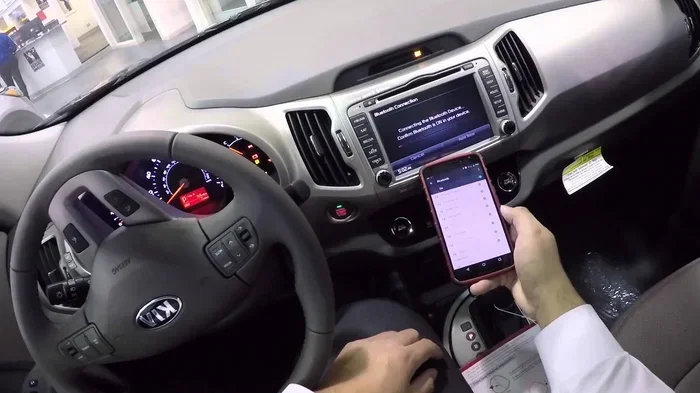
If you have an iPhone, the pairing process is smooth and fast. Here is what to do:
- Start your Kia Sportage and make sure the engine is running.
- On the center touchscreen, tap the Settings icon.
- Select Bluetooth from the menu.
- Toggle Bluetooth to the “On” position if it is not already enabled.
- Make sure your iPhone is unlocked and Bluetooth is turned on in your Settings.
- Your iPhone should appear on the Sportage screen under “Available Devices.”
- Tap your iPhone name on the Sportage display.
- A pairing code will appear on both screens. Confirm they match and tap “Pair.”
That is it! Your phone is now connected. You should see a Bluetooth icon in your iPhone status bar, and your Sportage will show the device as “Connected.”
For Android Users
Android users, do not worry. The process is very similar. Follow these steps:
- Start your Kia Sportage and go to the home screen.
- Tap the Settings gear icon on the touchscreen.
- Choose Bluetooth from the settings list.
- Make sure Bluetooth is switched on.
- On your Android phone, go to Settings and turn on Bluetooth.
- Your phone will scan for nearby devices automatically.
- Select your Kia Sportage from the list of available devices.
- Confirm the pairing request on both screens.
Once paired, your Android phone will sync contacts and allow wireless streaming of audio through your car speakers. The experience is nearly identical to the iPhone process.
How to Connect Multiple Devices
One great thing about the Kia Sportage Bluetooth system is that it supports multiple paired devices. This means your passenger can connect their phone too. Here is how to add a second or third device.
First, make sure your primary device is already connected. Then follow these steps:
- Go to Settings on the Sportage touchscreen.
- Select Bluetooth.
- Tap Search for Devices or look under “Paired Devices.”
- Choose “Add New Device.”
- On the second phone, make sure Bluetooth is on and set to visible.
- Select the second phone from the Sportage screen.
- Confirm the pairing code on both devices.
The Sportage can remember up to several paired phones. When multiple devices are in the car, it usually connects to the last device that was used. You can manually switch between devices in the Bluetooth settings menu whenever needed.
Troubleshooting Common Bluetooth Problems
Sometimes things do not go as planned. Maybe your car phone connection keeps dropping, or the phone will not show up on the screen. Do not panic. Most Bluetooth troubleshooting issues have simple fixes.
Phone Will Not Show Up on the Screen
This is the most common issue. Try these steps first:
- Turn Bluetooth off on both your phone and the Sportage, then turn them back on.
- Make sure your phone is not connected to another device nearby.
- Delete old Bluetooth pairings from both your phone and the Sportage.
- Restart your phone and try again.
- Check that your phone is set to “Visible” or “Discoverable” in Bluetooth settings.
Audio Keeps Cutting Out
If your wireless streaming audio drops in and out, try these fixes:
- Move closer to the car’s antenna (usually near the rear windshield).
- Remove other Bluetooth devices from the car that might cause interference.
- Check for software updates on your phone.
- Reset the Sportage Bluetooth settings by removing all paired devices and pairing fresh.
Hands-Free Calling Does Not Work
If you can stream music but cannot make calls, check this:
- Go to Bluetooth settings on the Sportage.
- Make sure “Phone Audio” or “Call Audio” is enabled for your device.
- Check your phone’s call permissions for the car Bluetooth connection.
Tips for Better Bluetooth Performance in Your Sportage
Want to get the most out of your Kia Sportage Bluetooth experience? These practical tips will help you enjoy better audio quality and a more stable connection every time you drive.
Keep Your Software Updated
Both your phone and your Sportage’s infotainment system benefit from regular updates. Car manufacturers release software updates that improve wireless connectivity and fix bugs. Check for updates in your Sportage settings or visit your local Kia dealer.
Delete Old Pairings Regularly
Over time, your Bluetooth memory can get cluttered with old connections. This slows things down. Go into the Bluetooth settings menu every few months and remove devices you no longer use. A clean list means a faster, more reliable connection.
Use the Right Audio Source
After pairing, make sure your Sportage is set to the correct audio source. Look for “BT Audio” or “Bluetooth” on the touchscreen. If you have Apple CarPlay or Android Auto, those use Bluetooth as a foundation but may require you to select a specific source on the screen.
Keep Your Phone Charged
Bluetooth uses power from your phone. If your battery is low, the connection may be weaker or drop unexpectedly. Plugging your phone into the USB port while driving helps maintain a strong car phone connection.
Maintaining Your Bluetooth Connection Over Time
Once you have your Kia Sportage Bluetooth set up, keeping it running smoothly is easy. A little maintenance goes a long way. Here are a few habits that will help.
First, restart your phone occasionally. This clears temporary glitches that can affect Bluetooth device pairing. Second, if you sell or give away a paired phone, always delete it from your Sportage’s memory. This protects your privacy and keeps the system clean.
Third, if you buy a new phone, do a fresh Bluetooth pairing rather than trying to transfer an old connection. It takes only a couple of minutes and prevents conflicts. Finally, if you notice persistent problems, a factory reset of the infotainment system often solves them. Just check your owner’s manual for instructions on how to do this safely.
The beauty of Bluetooth wireless streaming in the Kia Sportage is that it just works once set up correctly. You will wonder how you ever drove without it. From hands-free calls to wireless connectivity for your favorite playlists, the experience is seamless and enjoyable every time you turn the key.
Remember, if you ever get stuck, the owner’s manual for your specific Sportage model year is a great resource. Kia also offers excellent customer support, and many dealers will help you with Bluetooth settings during routine service visits. You are never alone in this process.
Now you know everything you need about how to connect Bluetooth to Kia Sportage. Go ahead, pair your phone, and enjoy the drive. Your Kia Sportage Bluetooth system is ready to work for you.
Frequently Asked Questions
How do I know if my Kia Sportage has Bluetooth?
Most Kia Sportage models from 2013 onward come standard with Bluetooth wireless connectivity. You can check by looking for the Bluetooth icon in your infotainment system settings. If you see a Bluetooth option in the menu, your Sportage is equipped for device pairing.
Why won’t my phone connect to my Kia Sportage via Bluetooth?
This usually happens when the phone and car are not set to discover each other. Try turning Bluetooth off and back on both devices. Also remove any old pairings and restart your phone. If the issue persists, check for software updates on both your phone and your Sportage’s infotainment system.
Can I connect two phones to my Kia Sportage at the same time?
Yes, the Kia Sportage Bluetooth system supports multiple paired devices. You can connect more than one phone at a time. The car will usually connect to the last device that was used, but you can manually switch between them in the Bluetooth settings menu.
How do I improve Bluetooth audio quality in my Sportage?
To get the best audio quality, make sure your phone is fully charged or plugged in. Keep your phone close to the car’s internal antenna. Also, delete old paired devices regularly and keep both your phone and car software up to date for optimal wireless streaming performance.
Does Bluetooth in the Kia Sportage support hands-free calling?
Absolutely. The Bluetooth pairing in the Kia Sportage includes full hands-free calling support. You can make and receive calls through your car’s speakers and microphone without touching your phone. This feature helps keep you focused on the road and is a key benefit of wireless connectivity in the Sportage.
What should I do if my Bluetooth connection keeps dropping?
Interference from other devices or a low phone battery can cause Bluetooth troubleshooting issues like dropped connections. Move closer to the car, remove other active Bluetooth devices, and restart both your phone and the infotainment system. If problems continue, reset the Sportage Bluetooth settings and pair your phone fresh.
=== CONCLUSION ===
Connecting Bluetooth to Kia Sportage does not have to be complicated. With the steps outlined in this guide, you can pair your phone, enjoy hands-free calling, stream your favorite music, and experience seamless wireless connectivity in just a few minutes. The Kia Sportage Bluetooth system is designed to make your driving life easier, safer, and more entertaining.
Remember to keep your software updated, delete old pairings, and troubleshoot quickly when issues arise. These small habits ensure your car phone connection stays strong and reliable for years to come. Now that you know how to connect Bluetooth to Kia Sportage the easy way, go ahead and give it a try. Your next drive is going to be a whole lot better.