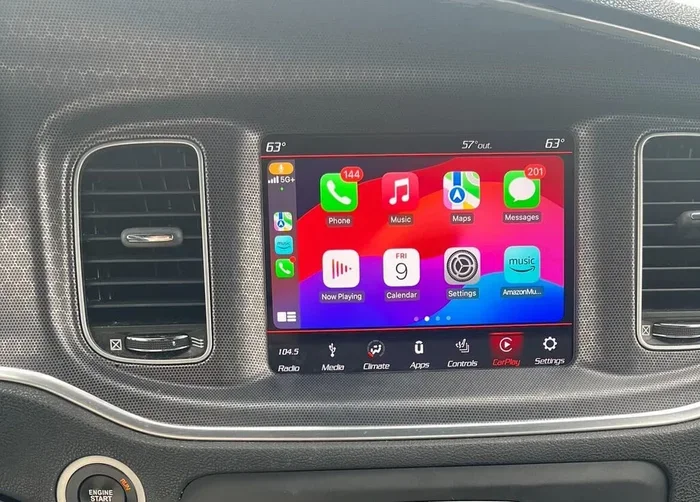
How to Reset Dodge Challenger CarPlay Fast and Easy
Resetting your Dodge Challenger CarPlay is simple and can solve most connectivity issues in minutes. Whether your CarPlay is frozen, not connecting, or acting up, this guide walks you through every method from a quick reboot to a full factory reset. You will learn the safest steps to get your Dodge infotainment and Apple CarPlay working like new again.
There is nothing more frustrating than hopping into your Dodge Challenger and finding that CarPlay is not working. You tap the screen. Nothing happens. Or maybe the screen freezes right when you need directions. This happens more often than you might think, and it can ruin your whole drive.
The good news is that resetting CarPlay on a Dodge Challenger is usually fast and easy. You do not need to be a tech expert. In this guide, we walk you through every method step by step. From a simple reboot to a full system reset, we have you covered. By the end, your Dodge infotainment system will be back to running smoothly.
Key Takeaways
- Soft Reset: A quick reboot fixes most minor CarPlay glitches on your Dodge Challenger.
- Settings Reset: Clearing CarPlay data through the Uconnect system removes stored errors without losing other info.
- Factory Reset: A full factory reset should be your last resort when nothing else works.
- USB Cable Matters: A faulty cable is one of the top reasons CarPlay disconnects or fails to start.
- Update Your System: Keeping your Uconnect and iPhone software current prevents most CarPlay problems.
- Wireless vs. Wired: Wireless CarPlay can have different reset steps than wired connections.
- Patience Pays Off: Letting the system fully power down before restarting is key to a successful reset.
📑 Table of Contents
- Why Does CarPlay Stop Working on a Dodge Challenger?
- How to Reset Dodge Challenger CarPlay: Step-by-Step Methods
- Comparison: Which Reset Method Should You Use?
- Quick Tips to Prevent CarPlay Issues on Your Dodge Challenger
- Common Mistakes People Make When Resetting CarPlay
- When to Visit a Dodge Dealership for Help
- Final Thoughts
Why Does CarPlay Stop Working on a Dodge Challenger?
Before you learn how to fix the problem, it helps to understand why it happens. CarPlay not connecting on a Dodge Challenger can stem from a few common causes. Let us look at them so you can prevent the issue in the future.
Software Glitches and Freezes
Like any tech system, the Uconnect infotainment in your Challenger can experience software hiccups. A frozen screen or a sudden disconnect is usually a minor software bug. These glitches often happen after a long drive or when you have many apps open at once.
Faulty USB Cables or Ports
A loose or damaged USB cable is one of the biggest culprits. If the cable does not make a solid connection, your Apple CarPlay will not start. Dirt or debris in the USB port can also cause problems. This is a very common reason for CarPlay disconnect issues.
Outdated Software
Both your iPhone and your Dodge infotainment system need to stay updated. An outdated iOS or an old Uconnect software version can cause CarPlay compatibility issues. Updates often include bug fixes that solve these exact problems.
Wireless Connection Interference
If you use wireless CarPlay on your Dodge Challenger, Wi-Fi and Bluetooth interference can cause dropouts. Other devices, Bluetooth signals, or even a weak phone signal can disrupt the connection.
How to Reset Dodge Challenger CarPlay: Step-by-Step Methods
Now let us get into the fix. There are several ways to reset CarPlay on a Dodge Challenger. We start with the easiest method and work our way up. Try each one in order until your CarPlay works again.
Method 1: The Soft Reset (Quick Reboot)
A soft reset is the fastest way to fix a frozen CarPlay screen on your Dodge. This method restarts the infotainment system without deleting anything. It takes less than a minute.
Here is what you need to do:
- Press and hold the power button on your Dodge Challenger’s infotainment screen.
- Wait for the screen to go completely black.
- Wait about 10 to 15 seconds.
- Press the power button again to turn the screen back on.
- Once the system boots up, tap the CarPlay icon.
This simple reboot CarPlay Dodge trick fixes the majority of minor issues. If your screen was just frozen or lagging, this should do the job. Most people find that a soft reset solves their problem right away.
Method 2: Reset CarPlay Through Uconnect Settings
If a soft reboot did not work, the next step is to reset CarPlay through the Uconnect settings. This clears the CarPlay data without touching anything else on your system.
Follow these steps carefully:
- Tap the Settings icon on your Dodge Challenger’s home screen.
- Find and tap on the Uconnect or Infotainment section.
- Look for the Phone or Connectivity option.
- Select Apple CarPlay from the list.
- Choose the option to forget or unpair the device.
- Restart the system using the power button.
- Reconnect your iPhone using a USB cable.
This method works well when your CarPlay keeps disconnecting or when the screen shows an error message. It clears out any corrupted data that might be causing the problem.
Method 3: Reset All Uconnect Settings
Sometimes the problem goes deeper than just CarPlay. In that case, you may need to reset all the Uconnect settings on your Dodge Challenger. This resets the entire infotainment system to its default state.
Here is how to do it:
- Go to Settings on the infotainment screen.
- Scroll down to System or System Settings.
- Tap on Factory Reset or Reset to Default.
- Confirm your choice when prompted.
- Wait for the system to fully reboot.
- Set up your preferences again and reconnect CarPlay.
Note: This method will erase your saved Wi-Fi networks, Bluetooth pairings, and system preferences. You will need to set those up again. But it will not delete your personal files or media. This is a powerful fix for stubborn Dodge Challenger CarPlay problems.
Method 4: Factory Reset (Last Resort)
If none of the above methods work, a full factory reset might be needed. This is the most thorough reset and should only be used as a last resort. It wipes everything from the infotainment system and restores it to the original factory settings.
Before you do this, make sure you have your owner’s manual handy. The exact steps can vary slightly depending on your model year. You can also visit a Dodge dealership if you are not comfortable doing this yourself.
To perform a factory reset:
- Turn off the vehicle completely.
- Locate the reset button on the infotainment unit (it is often a small pinhole).
- Use a paperclip or SIM ejector tool to press and hold the button for 10 seconds.
- Wait for the system to restart and go through the full setup process.
- Reconnect your iPhone and test CarPlay.
A factory reset almost always fixes deep-rooted CarPlay not working issues. But it should only be done when all other options have failed.
Comparison: Which Reset Method Should You Use?
Not every reset method is the right fit for every situation. Here is a quick comparison to help you decide which method to try first.
| Method | Time Needed | Data Lost? | Best For |
|---|---|---|---|
| Soft Reset | 1 minute | No | Frozen screen, minor glitches |
| Uconnect Settings Reset | 3-5 minutes | CarPlay pairing data only | CarPlay keeps disconnecting |
| Full Uconnect Reset | 5-10 minutes | Wi-Fi, Bluetooth, preferences | Multiple system issues |
| Factory Reset | 15-20 minutes | All infotainment data | Persistent, unresolved issues |
Start with the soft reset. If that does not work, move to the next method. You do not need to try all of them unless the problem continues. Most Dodge Challenger owners find that the first two methods solve their issue.
Quick Tips to Prevent CarPlay Issues on Your Dodge Challenger
Prevention is always better than a fix. Here are some simple tips that can keep your CarPlay running smoothly on your Dodge Challenger.
- Use a high-quality USB cable. Cheap or damaged cables cause most CarPlay problems. Invest in a certified Lightning or USB-C cable.
- Keep your iPhone updated. iOS updates often include fixes for CarPlay bugs. Check for updates regularly.
- Restart your phone once a week. A simple phone reboot clears out temporary glitches that can interfere with CarPlay.
- Clean the USB port. Use a soft brush or compressed air to remove dust and debris from the charging port in your Dodge.
- Avoid using your phone while it is connecting. Let CarPlay fully load before you start tapping the screen.
- Update your Uconnect system. Dodge releases software updates that improve CarPlay compatibility and fix known bugs.
Expert Insight
According to Dodge service technicians, the most common reason for CarPlay issues on Dodge Challengers is a worn-out USB cable. Before you try any reset, swap in a different cable first. This alone solves the problem about half the time. It is a small change that makes a big difference.
Common Mistakes People Make When Resetting CarPlay
Even with the best guide, people sometimes make mistakes that slow down the process. Here are the most common ones to avoid.
Skipping the Soft Reset
Many people jump straight to a factory reset. This is almost always unnecessary. A simple soft reset fixes the vast majority of CarPlay issues. Always start with the easiest fix first.
Not Unpairing Before Reconnecting
If you just plug your phone back in without unpairing first, the old error can persist. Always forget the device in your Uconnect settings before trying to reconnect. This gives you a clean start.
Using a Damaged Cable
This cannot be said enough. A frayed or bent cable will cause CarPlay not connecting no matter how many times you reset the system. Always inspect your cable before troubleshooting.
Ignoring Software Updates
Running outdated software on either your phone or your Dodge’s infotainment system is a recipe for problems. Updates fix bugs and improve performance. Keep both devices current.
When to Visit a Dodge Dealership for Help
Most of the time, you can fix CarPlay issues at home using the methods in this guide. But there are times when professional help is the right call.
You should visit a Dodge dealership if:
- The screen stays black even after a full factory reset.
- You see error messages that mention hardware failure.
- CarPlay works on another car but not your Dodge Challenger.
- The infotainment system crashes repeatedly after every reset.
- Your vehicle is still under warranty and you want free service.
A dealership has access to specialized diagnostic tools that can identify hardware problems you cannot fix at home. They can also update your Uconnect firmware to the latest version, which often resolves deep compatibility issues with Apple CarPlay.
Final Thoughts
Resetting CarPlay on your Dodge Challenger does not have to be complicated. In most cases, a simple soft reboot or a quick settings reset gets everything working again. The key is to stay calm and work through the methods one at a time. Start easy and only move to more advanced steps if needed.
Keep your cables in good shape, update your software regularly, and clean your USB ports. These small habits go a long way in preventing CarPlay disconnect issues before they start. Your Dodge Challenger has a great tech setup, and with a little care, it will keep your drives connected and enjoyable.
Now you have everything you need to fix Dodge Challenger CarPlay issues fast. Try these steps the next time your screen acts up, and you will be back on the road with your favorite apps in no time.
Frequently Asked Questions
How long does it take to reset CarPlay on a Dodge Challenger?
A soft reset takes about one minute. A settings reset takes three to five minutes. A full factory reset can take 15 to 20 minutes. Most CarPlay issues are solved with the quick soft reset method.
Will resetting CarPlay delete my music and apps on my phone?
No. Resetting CarPlay on your Dodge Challenger only affects the infotainment system. Your music, apps, and personal data on your iPhone stay completely safe. The reset only clears the CarPlay pairing data and connection settings.
Why does my Dodge Challenger CarPlay keep disconnecting?
The most common reason is a loose or damaged USB cable. Other causes include outdated software, Wi-Fi interference for wireless CarPlay, or corrupted pairing data. Try a different cable first, then move to a settings reset if needed.
Can I use wireless CarPlay on a Dodge Challenger?
Yes, many newer Dodge Challenger models support wireless CarPlay. However, wireless connections can be more prone to interference and dropouts. A wired connection through USB is often more stable and requires fewer resets.
Do I need to update my Uconnect system to fix CarPlay?
Updating your Uconnect system is not always required, but it helps a lot. Updates include bug fixes and improved CarPlay compatibility. Check for updates through your infotainment settings or visit a Dodge dealership for assistance.
Is it safe to factory reset my Dodge Challenger infotainment system?
Yes, it is safe. A factory reset will not damage your vehicle or delete personal files. It will erase all infotainment settings and preferences, so you will need to set them up again. Always back up any important data before performing a factory reset.