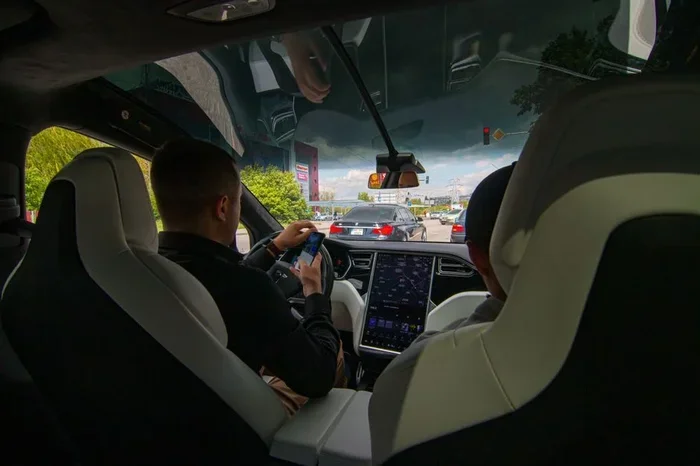
How to Download Dashcam Footage from Tesla Step by Step
Downloading dashcam footage from Tesla is easier than you think. This step-by-step guide shows you exactly how to save your Tesla dashcam clips using a USB drive, the touchscreen, and the Tesla app. Whether you drive a Model 3, Model Y, Model S, or Model X, you will learn how to save dashcam clips quickly and safely.
Have you ever wanted to save a clip from your Tesla dashcam but did not know where to start? Maybe you witnessed a close call on the road or just want to keep a record of your daily commute. Either way, how to download dashcam footage from Tesla is a question many owners ask. The good news is that it is a straightforward process once you know the steps.
Tesla vehicles come equipped with powerful cameras that record your drives. These cameras capture footage from the front, rear, and sides of your car. The recordings are stored on your Tesla’s internal storage. But to keep a permanent copy, you need to save dashcam clips to an external device. This guide will walk you through every method available.
Whether you are a new Tesla owner or have been driving one for years, this guide has something for you. We will cover USB export methods, Sentry Mode footage retrieval, and even how to use the Tesla mobile app. By the end, you will feel confident downloading your Tesla dashcam footage like a pro.
Key Takeaways
- USB Export Method: The most reliable way to download Tesla dashcam footage using a formatted USB drive.
- Sentry Mode Clips: Learn how to access and save recordings captured by Tesla Sentry Mode.
- Touchscreen Navigation: Step-by-step instructions for using the Tesla infotainment screen to export clips.
- Tesla App Option: Discover how to view and save clips remotely through the Tesla mobile app.
- File Format Tips: Understand MP4 files, folder structures, and how to play Tesla camera footage on any device.
- Model Compatibility: Works with Tesla Model 3, Model Y, Model S, and Model X dashcam systems.
📑 Table of Contents
- Why Downloading Tesla Dashcam Footage Matters
- What You Need Before You Start
- Step-by-Step Guide: Download Dashcam Footage via USB
- How to Save Sentry Mode Clips
- Using the Tesla App to View and Save Clips
- Common Problems and How to Fix Them
- Best Practices for Managing Your Dashcam Footage
- Key Takeaways
- Conclusion
Why Downloading Tesla Dashcam Footage Matters
Your Tesla records a lot of valuable footage while you drive. But that footage stays on the car unless you save it. Here is why downloading your dashcam footage is so important.
First, it protects you in case of an accident. If another driver causes a collision, your Tesla camera footage can serve as proof. Insurance companies and law enforcement often find this evidence very helpful. Without downloading the clip, the footage may get overwritten by new recordings within a few hours.
Second, Tesla Sentry Mode uses the cameras to monitor your car when it is parked. If someone hits your vehicle or tries to break in, Sentry Mode records the event. But those clips are also temporary. Downloading them ensures you keep a copy for your records.
Third, some owners simply enjoy reviewing their drives. Whether it is a scenic road trip or a daily commute, having the footage saved lets you relive the moments. It also helps you review your driving habits over time.
What You Need Before You Start
Before you download any Tesla camera footage, you need a few things ready. Gathering these items ahead of time saves you a lot of frustration later.
USB Drive Requirements
The most common way to export Tesla dashcam footage is through a USB drive. But not just any USB drive will work. Here are the requirements:
- Storage Capacity: Use a USB drive with at least 16 GB of space. A 32 GB or 64 GB drive gives you even more room for clips.
- File System: The drive must be formatted as FAT32 or exFAT. Tesla vehicles do not support NTFS format.
- Drive Type: A standard USB flash drive works great. Avoid overly large drives, as some Tesla models have compatibility issues with drives above 1 TB.
- Speed: A USB 3.0 drive is faster and more reliable for saving large video files.
Tesla Model Compatibility
Almost every Tesla model supports dashcam footage export. This includes the Tesla Model 3, Tesla Model Y, Tesla Model S, and Tesla Model X. The process is nearly identical across all models, with only small differences in the touchscreen layout. Make sure your Tesla software is updated to the latest version for the best experience.
Step-by-Step Guide: Download Dashcam Footage via USB
The USB method is the most reliable and widely used way to save dashcam clips from your Tesla. Follow these steps carefully.
Step 1: Insert the USB Drive
Locate the USB port on your Tesla. In most models, the port is in the center console or near the rear seats. Insert your formatted USB drive firmly into the port. The Tesla touchscreen should recognize the drive within a few seconds.
Step 2: Open the Controls Menu
Tap the Tesla icon at the top left of your touchscreen. This opens the Controls menu. From there, select the Safety & Security option. You will see a section for Dashcam and Sentry Mode settings.
Step 3: Navigate to the Dashcam Folder
Go back to the main Controls menu and tap the Service option. Then select the Dashcam option. This opens the folder where your Tesla camera footage is stored. You will see clips organized by date and time.
Step 4: Copy the Clips to USB
Select the clips you want to download. You can tap and hold to select multiple clips. Then tap the Copy to USB option. The Tesla will begin transferring the files to your USB drive. This process may take a few minutes depending on the number and size of the clips.
Step 5: Eject the USB Drive Safely
Once the transfer is complete, go back to the Service menu and tap Eject USB. Wait for the confirmation message before removing the drive. Pulling the drive out too early can corrupt the video files.
Step 6: View Your Footage
Remove the USB drive and plug it into your computer. The clips will be in MP4 format, which works on almost every device. You can watch them directly, share them with your insurance company, or back them up to cloud storage.
How to Save Sentry Mode Clips
Tesla Sentry Mode is one of the most useful security features in any Tesla. When enabled, it uses all the cameras to record events around your parked car. If an incident occurs, Sentry Mode saves a clip automatically. But you still need to download it to keep a permanent copy.
The process for saving Sentry Mode footage is very similar to the dashcam method. Insert your USB drive, go to the Controls menu, and tap Service. Then select the Sentry Mode option. You will see a list of saved events. Tap the clip you want to keep and choose Copy to USB.
One important tip: Sentry Mode clips are often larger than regular dashcam footage because they use multiple cameras at once. Make sure your USB drive has enough free space before you start the transfer.
Quick Tips for Sentry Mode Footage
- Always format your USB drive before using it for Sentry Mode clips.
- Check the USB drive after each download to make sure the files are not corrupted.
- Save clips to a dedicated folder on your USB drive for easy organization.
- If your Tesla shows an error, try a different USB port or a different USB drive.
Using the Tesla App to View and Save Clips
Did you know you can also access your Tesla dashcam footage through the Tesla mobile app? This is a great option if you want to save a clip while you are away from your car.
Open the Tesla app on your phone and log in. Tap the Camera icon to view the live feed from your Tesla cameras. You can also access saved clips from the Dashcam section. While the app does not let you directly download clips to your phone, you can screen-record the footage or share it via a link if you have Tesla Premium Connectivity.
For a full download, it is still best to use the USB method. But the app is perfect for quickly reviewing clips or sharing a short video with someone right away.
Common Problems and How to Fix Them
Sometimes things do not go smoothly when you are trying to download dashcam footage from Tesla. Here are the most common issues and simple fixes.
USB Drive Not Recognized
If your Tesla does not detect the USB drive, try reformatting it to FAT32. Also, make sure the drive is not damaged. Some older USB drives are not compatible with Tesla systems. Try a different drive if the problem continues.
Clips Not Playing on Your Computer
Tesla saves clips in MP4 format, but some media players may struggle with the file. Try using VLC Media Player or Windows Media Player. These free programs handle Tesla video files without any issues. If the video still does not play, the file may be corrupted. Try re-downloading the clip from your Tesla.
Footage Gets Overwritten
Tesla dashcam footage is stored in a loop. Older clips get automatically deleted to make room for new ones. This is why it is so important to download clips regularly. Do not wait too long after an event to save the footage.
Sentry Mode Not Recording
If your Tesla Sentry Mode is not saving clips, check your settings first. Make sure Sentry Mode is turned on and that your USB drive is connected. Also, ensure your Tesla software is up to date. Sometimes a simple software update fixes recording issues.
Best Practices for Managing Your Dashcam Footage
Once you know how to save dashcam clips from your Tesla, it helps to have a system for managing them. A good system saves you time and keeps your footage organized.
Create a folder on your computer for each month. Inside each folder, add subfolders for different events. Name each file with the date and a short description. For example, “2024-03-15_Front_Collision.mp4” makes it easy to find the right clip later.
Back up your footage to cloud storage like Google Drive or Dropbox. This adds an extra layer of protection. If your USB drive gets lost or damaged, you still have the footage safe in the cloud.
Also, consider sharing clips with your insurance company right away. Most insurance providers accept digital video evidence. Having your Tesla camera footage ready can speed up the claims process significantly.
Expert Insight: Why Regular Downloads Matter
Tesla dashcam footage is stored on a loop. This means clips older than a few hours or days may be deleted automatically. Experts recommend downloading important clips within 24 hours. This ensures you always have a backup of critical footage, especially after any incident on the road.
Key Takeaways
- USB Export Is the Best Method: A formatted FAT32 USB drive is the most reliable way to download Tesla dashcam footage from any model.
- Sentry Mode Clips Need the Same Process: Save Sentry Mode footage the same way you save regular dashcam clips through the Service menu.
- Use the Tesla App for Quick Reviews: The mobile app lets you view clips remotely, but USB export is best for permanent downloads.
- Format Your USB Drive First: Always format your drive as FAT32 or exFAT before using it with your Tesla.
- Download Clips Promptly: Tesla stores footage on a loop, so older clips get overwritten quickly. Download important footage within 24 hours.
- Use Compatible Media Players: VLC Media Player plays Tesla MP4 files smoothly on any computer.
- Works Across All Tesla Models: The process is the same for Model 3, Model Y, Model S, and Model X owners.
Conclusion
Learning how to download dashcam footage from Tesla is a simple but valuable skill for every Tesla owner. Whether you use a USB drive, the touchscreen menu, or the Tesla app, the process is quick and easy. Your Tesla dashcam captures important moments every time you drive, and downloading the footage ensures you never lose those recordings.
Keep a formatted USB drive in your car at all times. Make it a habit to download clips after any notable event. This small routine can save you a lot of trouble if you ever need footage for an insurance claim or a police report. With the steps in this guide, you now have everything you need to save dashcam clips confidently and efficiently.
Start today. Plug in your USB drive, follow the steps, and protect your drives with the power of your Tesla cameras. You will be glad you did.
Frequently Asked Questions
Can I download dashcam footage from Tesla without a USB drive?
Not directly. Tesla does not currently support wireless downloads of dashcam footage. You need a USB drive to export clips from the car. However, you can view clips through the Tesla app and screen-record them if needed.
What file format does Tesla use for dashcam footage?
Tesla saves all dashcam and Sentry Mode clips in MP4 format. This is a widely supported video format that plays on almost every device, including computers, phones, and tablets.
How long does Tesla keep dashcam footage before it gets deleted?
Tesla stores footage on a loop. Older clips are automatically overwritten by new ones. Depending on your storage settings, clips may be deleted within a few hours or days. This is why regular downloads are so important.
Can I download Sentry Mode footage the same way as dashcam footage?
Yes. The process is identical. Go to the Service menu on your touchscreen, select Sentry Mode, choose the clip you want, and copy it to your USB drive.
Do I need Tesla Premium Connectivity to access dashcam footage?
No. You do not need Premium Connectivity to view or download dashcam footage from your car. Premium Connectivity only adds remote access features through the Tesla app. The USB export method works on all Tesla vehicles.
Which USB drives work best with Tesla vehicles?
USB drives formatted as FAT32 or exFAT work best. Brands like SanDisk and Samsung are reliable choices. Avoid drives larger than 1 TB, as some Tesla models may not recognize them properly.