How to Reset Hyundai BlueLink and Get It Working Again
Resetting Hyundai BlueLink is straightforward once you know the right steps. Whether your BlueLink app won’t log in, the connected car services are frozen, or your infotainment system needs a fresh start, this guide walks you through every method. We cover app resets, account resets, and vehicle system restarts so you can get back to using Hyundai BlueLink without a headache.
Nothing is more frustrating than trying to use your Hyundai BlueLink and finding it completely unresponsive. You tap the app, and nothing happens. You try to log in, and the screen freezes. Maybe your remote start feature suddenly stops working, or the map refuses to load. Whatever the problem is, you are probably searching for a fix right now.
Here is the good news. Most BlueLink issues can be solved with a simple reset. You do not need to be a tech expert. You do not need to visit a dealer right away. In most cases, a few straightforward steps will bring your connected car services back to life. This guide covers every reset method you need, from a quick app restart to a full system reboot.
We will walk you through each step in plain language. No jargon. No confusing instructions. Just clear, actionable steps that actually work. Let us get your Hyundai BlueLink back up and running.
Key Takeaways
- Soft Reset the App: Clearing the BlueLink cache and data often fixes login and connectivity issues quickly.
- Reset Your Account Password: A simple password reset can resolve many BlueLink access problems.
- Restart the Vehicle Infotainment System: A factory reset of the car’s head unit can fix deeper system glitches.
- Check Your Subscription Status: An expired BlueLink subscription can mimic reset-required symptoms.
- Update the App and Firmware: Outdated software is a common cause of BlueLink malfunctions.
- Contact Hyundai Support When Needed: Some issues require professional help, and that is perfectly okay.
- Prevent Future Issues: Regular maintenance steps keep BlueLink running smoothly long-term.
📑 Table of Contents
- What Is Hyundai BlueLink and Why Does It Need a Reset?
- How to Soft Reset the Hyundai BlueLink App
- How to Reset Your Hyundai BlueLink Account Password
- How to Restart the Vehicle Infotainment System
- Common Reasons Hyundai BlueLink Stops Working
- How to Check Your BlueLink Subscription Status
- When to Contact Hyundai BlueLink Support
- How to Prevent BlueLink Issues in the Future
- Final Thoughts on Resetting Hyundai BlueLink
What Is Hyundai BlueLink and Why Does It Need a Reset?
Understanding Your BlueLink System
Hyundai BlueLink is a connected car service that comes built into many modern Hyundai vehicles. It lets you remote start your engine, lock and unlock doors, track your vehicle’s location, and even send destinations to your car’s navigation system. The service works through a mobile app on your phone and a system inside your vehicle.
Like any technology, BlueLink can sometimes glitch. Software updates, expired subscriptions, cached data buildup, or simple bugs can cause the system to malfunction. When this happens, a reset is often the fastest and most effective solution. Think of it like restarting your phone when it starts acting slow. A fresh start clears out the temporary problems and lets the system run clean again.
How to Soft Reset the Hyundai BlueLink App
A soft reset is the first thing you should try. It is quick, easy, and fixes the majority of BlueLink app problems. This method does not delete any of your data or settings. It simply clears temporary files that might be causing issues.
For iPhone Users
- Double-click the home button or swipe up from the bottom of your screen.
- Find the BlueLink app in the app switcher.
- Swipe up on the BlueLink preview to close it completely.
- Wait about 10 seconds.
- Reopen the app from your home screen.
For Android Users
- Open your phone’s Settings app.
- Go to Apps or Application Manager.
- Find and tap on Hyundai BlueLink.
- Tap on Storage.
- Press Clear Cache first. If that does not work, press Clear Data.
- Reopen the app and log back in.
Quick Tip: Always make sure your phone has a stable internet connection before reopening BlueLink. A weak Wi-Fi or cellular signal can cause the same frustrating symptoms as a glitchy app.
How to Reset Your Hyundai BlueLink Account Password
If you cannot log into your BlueLink account, a password reset is the way to go. This is one of the most common reasons people think their system needs a full reset. In reality, it is just a login problem.
Step-by-Step Password Reset
- Open the Hyundai BlueLink app on your phone.
- Tap the Login button.
- Select Forgot Password below the login fields.
- Enter the email address linked to your BlueLink account.
- Check your email inbox for a reset link from Hyundai.
- Tap the link and create a new password.
- Log back into the app with your new password.
If you do not receive the reset email, check your spam or junk folder. Sometimes the message gets filtered there. You can also request a new reset link after a few minutes. If the problem persists, your BlueLink account email address may have changed, and you might need to contact Hyundai BlueLink customer service for help.
How to Restart the Vehicle Infotainment System
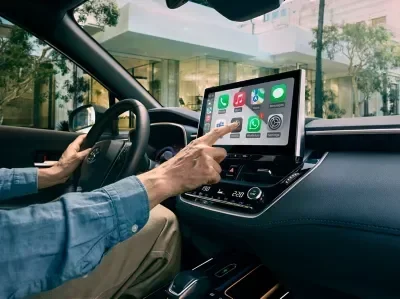
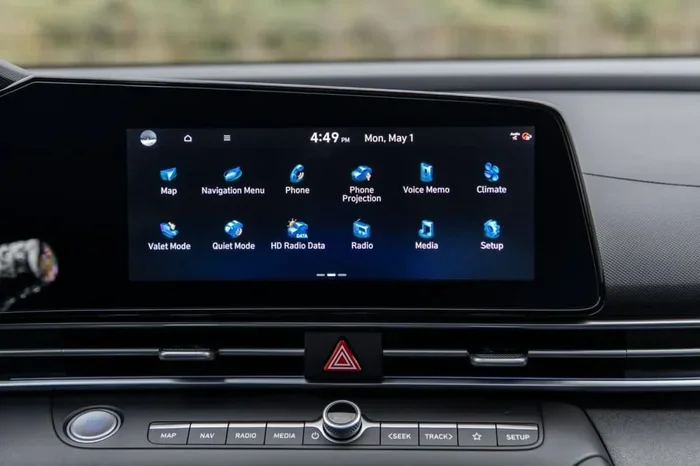
Sometimes the problem is not in the app but in the system inside your car. The BlueLink infotainment unit controls many connected features directly from your dashboard. When this system freezes or acts up, a restart can work wonders.
Method One: The Simple Restart
- Turn off your engine.
- Press and hold the power button on the infotainment screen for 10 seconds.
- Wait for the screen to go completely black.
- Wait another 30 seconds.
- Press the power button again to turn the system back on.
- Start your engine and test BlueLink features.
Method Two: The Full Factory Reset
If a simple restart does not fix the problem, you may need to factory reset the infotainment system. This will erase all your saved settings, paired phones, and navigation data. Use this as a last resort.
- Go to Settings on your infotainment screen.
- Find the System or General Settings menu.
- Look for a Factory Reset or Initialize option.
- Confirm the reset when prompted.
- Wait for the system to reboot completely.
- Reconnect your phone and set up BlueLink again.
Expert Insight: Before doing a factory reset, write down any important settings you want to keep. This saves you time when setting everything back up. Also, make sure your vehicle is parked safely and the engine is off during the process.
Common Reasons Hyundai BlueLink Stops Working
Understanding why BlueLink fails in the first place can help you prevent future problems. Here are the most common culprits:
- Expired Subscription: BlueLink requires an active subscription. After the trial period ends, you must renew to keep all features working. An expired plan can cause the system to appear broken.
- Outdated App Version: Running an old version of the BlueLink app can lead to compatibility issues. Always update to the latest version from the App Store or Google Play.
- Weak Cellular Signal: BlueLink relies on cellular data to communicate with your vehicle. If you are in a dead zone or underground parking, the system may not respond.
- Cached Data Buildup: Over time, temporary files pile up in the app and can slow it down or cause crashes. Clearing the cache regularly helps prevent this.
- Server Outages: Hyundai’s servers occasionally go down for maintenance. During these times, BlueLink features may not work even if everything on your end is fine.
- GPS Signal Issues: The vehicle’s GPS antenna can lose its connection, especially after a battery replacement or electrical work on the car.
If you have experienced any of these issues, you are not alone. They are extremely common among Hyundai BlueLink users. The good news is that most of them are easy to fix with the reset methods covered in this guide.
How to Check Your BlueLink Subscription Status
Before you jump into a reset, it is worth checking whether your BlueLink subscription is still active. A lapsed subscription can look exactly like a system glitch.
Checking Subscription in the App
- Open the Hyundai BlueLink app.
- Tap on Account or Profile.
- Look for a Subscription or Plan section.
- Check the expiration date listed there.
Renewing Your Subscription
If your subscription has expired, you can renew it directly through the app or by visiting the Hyundai website. You can also call Hyundai BlueLink customer service for assistance with renewal. Keep in mind that some features may be limited until you renew, so acting quickly helps restore full functionality.
Quick Tip: Set a calendar reminder a week before your subscription expires. This gives you plenty of time to renew without any interruption to your connected car services.
When to Contact Hyundai BlueLink Support
Most reset methods work quickly and get your system back to normal. But sometimes, the problem goes deeper than a simple restart can fix. Knowing when to reach out for help saves you time and frustration.
Signs You Need Professional Help
- The BlueLink app crashes every time you open it, even after a full uninstall and reinstall.
- Your vehicle does not respond to any remote commands through the app.
- The infotainment screen stays blank even after a full restart.
- You receive error codes on the dashboard that do not go away.
- Your BlueLink account shows as locked or suspended despite correct login details.
You can reach Hyundai BlueLink support through the app itself, by phone, or through the official Hyundai website. Have your vehicle identification number ready when you contact them. This helps the support team pull up your account and diagnose the issue faster.
Common Mistakes to Avoid: Do not try to open the app repeatedly if it is frozen. This can make the problem worse. Do not attempt a factory reset without backing up your settings first. And do not ignore subscription expiration warnings. These small mistakes can turn a simple fix into a bigger problem.
How to Prevent BlueLink Issues in the Future
Once you get your Hyundai BlueLink working again, you will want to keep it running smoothly. Prevention is always easier than troubleshooting. Here are a few habits that make a big difference.
- Update Regularly: Keep both the BlueLink app and your vehicle’s firmware up to date. Updates fix bugs and improve performance.
- Clear Cache Monthly: Make it a habit to clear the app cache once a month. This prevents data buildup that slows things down.
- Use a Stable Connection: Always try to use BlueLink when you have a strong Wi-Fi or cellular signal. Avoid using it in areas with poor coverage.
- Restart the System Occasionally: Even when everything works fine, a quick restart every few weeks keeps the system running cleanly.
- Monitor Your Subscription: Keep track of when your subscription renews and set reminders. An active subscription is the backbone of BlueLink functionality.
Taking these small steps can save you hours of troubleshooting down the road. Your BlueLink connected car services will stay reliable and responsive with just a little regular attention.
Final Thoughts on Resetting Hyundai BlueLink
Resetting Hyundai BlueLink does not have to be complicated. Whether you need to reset the BlueLink app, restore your account password, or reboot the vehicle infotainment system, the steps are simple and doable for anyone. Start with the soft reset, move to the password reset if needed, and try the infotainment restart for deeper issues.
Always check your subscription status and keep your app updated. These two habits prevent most problems before they start. And remember, reaching out to Hyundai BlueLink customer service is never a sign of failure. It is a smart move when the issue goes beyond what a simple reset can fix.
Your Hyundai BlueLink system is designed to make driving easier and more connected. With the right troubleshooting steps, you can keep enjoying all those features without interruption. Now go ahead and try these methods. Your car will thank you for it.
Frequently Asked Questions
How long does it take to reset Hyundai BlueLink?
A soft reset of the app takes less than a minute. A password reset usually takes about 5 minutes, depending on how quickly you receive the email. A full infotainment factory reset can take 10 to 15 minutes while the system reboots. Overall, most resets are quick and straightforward.
Will resetting Hyundai BlueLink delete my account data?
A soft reset of the app does not delete any data. However, a factory reset of the vehicle infotainment system will erase saved settings, paired phones, and navigation history. Your BlueLink account itself remains safe and intact. Always back up important settings before doing a full system reset.
Why does my Hyundai BlueLink app keep crashing?
App crashes are often caused by outdated software, cached data buildup, or a poor internet connection. Try clearing the app cache, updating to the latest version, or uninstalling and reinstalling the app. If crashes continue, contact Hyundai BlueLink support for further troubleshooting.
Do I need an active subscription to use Hyundai BlueLink after a reset?
Yes, an active BlueLink subscription is required for most features to work. After a reset, the system will check your subscription status. If your plan has expired, you will need to renew before full functionality is restored. Check your subscription status in the app or on the Hyundai website.
Can I reset Hyundai BlueLink without the app?
Yes, you can reset the vehicle infotainment system directly from the dashboard screen without using the app. You can also reset your account password through the Hyundai website on a browser. However, the app is the easiest way to manage most BlueLink functions and troubleshooting steps.
What should I do if none of the reset methods work?
If none of the reset methods fix the issue, contact Hyundai BlueLink customer service directly. Have your vehicle identification number and account details ready. A service advisor can run deeper diagnostics and may need to schedule a visit to your dealer if a hardware issue is suspected.