Hyundai Bluelink Settings Reset Everything You Need To Know
Resetting your Hyundai Bluelink settings is simpler than you think. Whether you need a factory reset, a password reset, or just want to restore default settings, this guide covers every method. You will learn step-by-step procedures, common mistakes to avoid, and expert tips to keep your connected car running smoothly.
Have you ever sat in your Hyundai and thought, “Why is my Bluelink system acting so weird?” You are not alone. Many Hyundai owners face issues with their connected car services at some point. The good news is that a simple Hyundai Bluelink settings reset can fix most of these problems. Whether your app will not sync, your vehicle settings feel off, or you just want a fresh start, this guide has you covered. We will walk you through every method, every step, and every tip you need. Let us get your Bluelink system running like new again.
A Bluelink settings reset can feel intimidating if you have never done it before. But here is the truth. It is a straightforward process. You do not need to be a tech expert. You do not even need to visit a dealership. With the right instructions, you can handle this at home in just a few minutes. This article breaks everything down into easy-to-follow sections. You will understand why resets happen, how to perform them, and what to do if something goes wrong. By the end, you will feel confident tackling any Bluelink reset on your own.
Key Takeaways
- Soft Reset vs. Factory Reset: Know the difference and choose the right one for your situation.
- Multiple Reset Methods: Reset through the infotainment system, the Bluelink app, or online account tools.
- Common Issues Solved: A reset fixes login problems, sync errors, and unresponsive features.
- Step-by-Step Guidance: Clear instructions for every reset type so anyone can follow along.
- Post-Reset Tips: Reconfigure your settings correctly after a reset to avoid repeated issues.
- When to Seek Help: Learn when a reset is not enough and professional support is needed.
📑 Table of Contents
- What Is Hyundai Bluelink and Why Would You Reset It?
- When Should You Reset Your Hyundai Bluelink Settings?
- How to Reset Hyundai Bluelink Settings Step by Step
- Bluelink Reset on the Vehicle vs. the App: What Is the Difference?
- Common Issues After a Bluelink Reset and How to Fix Them
- Expert Tips to Keep Your Hyundai Bluelink Running Smoothly
- When Should You Contact Hyundai Support Instead of Resetting?
- Final Thoughts on Resetting Your Hyundai Bluelink Settings
What Is Hyundai Bluelink and Why Would You Reset It?
Hyundai Bluelink is a connected car service that comes with many newer Hyundai vehicles. It lets you control features remotely through a smartphone app or the vehicle’s infotainment screen. You can lock your doors, start the engine, check fuel levels, and even locate your car. It also offers navigation, emergency assistance, and vehicle health reports. All of this runs through a cloud-based system that syncs with your account.
Over time, your Bluelink settings can become cluttered or corrupted. Software updates sometimes cause glitches. Account changes can create sync issues. Or maybe you simply want to start fresh. That is where a reset comes in. A Hyundai Bluelink settings reset clears out old data and restores the system to its default state. Think of it like restarting your phone when it starts acting up. Sometimes a fresh start is all you need.
There are different types of resets too. A soft reset clears temporary data. A factory reset wipes everything and starts from scratch. A password reset helps you regain access to your account. Each one serves a different purpose. We will cover all of them in detail below.
When Should You Reset Your Hyundai Bluelink Settings?
Knowing when to reset is just as important as knowing how. Many owners reset too often or too rarely. Here are clear signs that a Bluelink settings reset is the right move.
Your App Will Not Sync with the Vehicle
If your Bluelink app shows disconnected or will not communicate with your car, a reset can help. Sync issues often come from outdated data or corrupted login tokens. Resetting clears these errors and forces a fresh connection.
Features Stop Working Properly
Maybe your remote start no longer works. Or the navigation system freezes. Perhaps the vehicle status updates are delayed. These are signs that the system needs a refresh. A reset often brings those features back to life.
You Sold or Transferred Ownership
If you bought a used Hyundai or sold yours, you should reset all Bluelink settings. This removes the previous owner’s account and personal data. It protects your privacy and ensures a clean setup for the new owner.
After a Major Software Update
Hyundai releases periodic software updates for Bluelink. Sometimes these updates cause conflicts with existing settings. A reset after an update can prevent bugs and performance issues.
You Simply Want a Fresh Start
There is no shame in wanting a clean slate. Maybe you have been experimenting with settings and nothing feels right. A reset gives you a blank canvas to build from.
How to Reset Hyundai Bluelink Settings Step by Step
Now let us get into the actual process. There are three main ways to perform a Hyundai Bluelink settings reset. Each one targets a different part of the system. Choose the method that matches your situation.
Method 1: Reset Through the Infotainment System
This is the most common way to reset Bluelink settings directly on your vehicle. Follow these steps carefully.
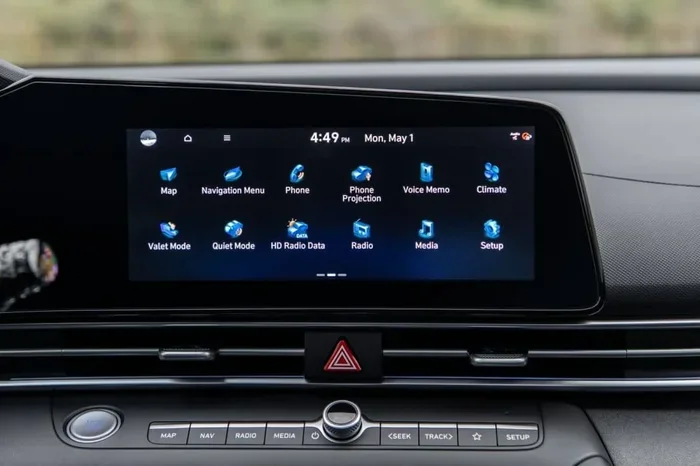
- Start your vehicle and press the Home button on the infotainment screen.
- Navigate to Settings. It usually looks like a gear icon.
- Scroll down to the Bluelink or Connected Car section.
- Look for an option labeled “Initialize” or “Reset to Default.”
- Confirm your choice when prompted.
- Wait for the system to complete the reset. This can take two to five minutes.
- Once done, restart the vehicle and log back into your account.
This method resets all vehicle-side Bluelink settings. It does not affect your online account or the app. It is ideal for fixing in-car connectivity issues.
Method 2: Reset Through the Bluelink App
If your problem is with the mobile app, you can reset from your phone. Here is how.
- Open the Bluelink app on your smartphone.
- Go to Settings within the app.
- Find the Account or Profile section.
- Tap on “Log Out” to sign out of your account completely.
- Clear the app cache if you are on Android. Go to Settings, then Apps, then Bluelink, then Clear Cache.
- Restart the app and log back in with your credentials.
- Re-pair your vehicle if needed.
This method works well for app-specific issues like login failures or notification problems. It refreshes the connection between your phone and the Bluelink server.
Method 3: Reset Your Online Bluelink Account
Sometimes the issue lives on Hyundai’s servers, not on your device. In that case, you need to reset your online account.
- Go to the Hyundai Bluelink website on your computer or phone browser.
- Click on “Sign In” and enter your credentials.
- Navigate to Account Settings.
- Look for a “Reset Account” or “Restore Defaults” option.
- Follow the on-screen prompts to complete the process.
- Log back in and reconfigure your preferences.
This method is the most thorough. It clears all cloud-stored data and restores your account to factory settings. Use it when the other two methods do not solve your problem.
Bluelink Reset on the Vehicle vs. the App: What Is the Difference?
It is easy to confuse these two types of resets. They target different parts of the system. Understanding the difference helps you choose the right approach.
| Aspect | Vehicle Reset | App Reset |
|---|---|---|
| Where it happens | On the infotainment screen in your car | On your smartphone |
| What it clears | Vehicle-side settings and cached data | App data, login tokens, and cache |
| How long it takes | 2 to 5 minutes | 1 to 2 minutes |
| Best for | Connectivity issues, frozen features | Login problems, sync errors |
| Requires vehicle? | Yes, the car must be on | No, works from anywhere |
For the best results, many experts recommend doing both. Start with the vehicle reset. Then follow up with the app reset. This covers all bases and ensures a clean slate across every platform.
Common Issues After a Bluelink Reset and How to Fix Them
A reset usually solves the problem. But sometimes new issues pop up afterward. Here are the most common post-reset problems and how to handle them.
You Cannot Log Back into Your Account
If your password does not work after a reset, do not panic. Try the “Forgot Password” link on the login screen. Reset your password through your email. Make sure you are using the correct email address associated with your Bluelink account. If that does not work, contact Hyundai Bluelink customer support for help.
The Vehicle Will Not Connect to the App
After a reset, the app and vehicle need to re-pair. Make sure Bluetooth and location services are enabled on your phone. Check that your vehicle is within range. Open the app and follow the pairing instructions. If the connection fails, try restarting both your phone and the vehicle.
Some Features Are Still Not Working
Occasionally, a reset does not fix everything. This can happen if there is a deeper software issue. Check for pending software updates for your vehicle. Install any available updates. If the problem persists, a visit to the dealership may be necessary.
Your Settings Keep Reverting
If your custom settings keep changing back to defaults, there may be a sync conflict. Log out of Bluelink on all devices. Wait 30 seconds. Log back in on your primary device. Then re-sync your vehicle. This usually resolves the conflict.
Expert Tips to Keep Your Hyundai Bluelink Running Smoothly
Prevention is always better than cure. These expert tips help you avoid needing a Hyundai Bluelink settings reset in the first place.
- Update regularly. Keep both your vehicle software and the Bluelink app up to date. Updates fix bugs and improve performance.
- Clear your cache monthly. Go to your phone settings and clear the Bluelink app cache. This prevents data buildup that causes slowdowns.
- Use a stable Wi-Fi connection. When setting up or resetting Bluelink, connect to a strong Wi-Fi network. A weak signal can interrupt the process.
- Log out before selling. If you sell or transfer your vehicle, always log out of Bluelink and reset all settings first.
- Avoid force-closing the app. Let the app close naturally. Force-closing can corrupt temporary data and cause sync issues.
- Check your subscription. Bluelink requires an active plan for many features. An expired subscription can mimic system errors.
These small habits make a big difference. They keep your connected car experience smooth and frustration-free. Most owners who follow these tips rarely need a reset at all.
When Should You Contact Hyundai Support Instead of Resetting?
Most Bluelink issues resolve with a simple reset. But some problems need professional help. Contact Hyundai support if you experience any of the following.
- The reset process fails multiple times.
- Your vehicle displays error codes that do not go away.
- You cannot access your account even after resetting your password.
- Features like remote start or emergency calling stop working entirely.
- Your vehicle’s infotainment system freezes during the reset process.
Hyundai’s customer support team can walk you through advanced troubleshooting. They can also check for hardware issues that a software reset cannot fix. You can reach them through the Bluelink app, the website, or by calling your local dealership. Do not hesitate to ask for help. It is better to get professional support than to risk damaging your system.
Final Thoughts on Resetting Your Hyundai Bluelink Settings
A Hyundai Bluelink settings reset is one of the most effective ways to solve connectivity and performance problems. Whether you use the vehicle infotainment system, the mobile app, or the online account, the process is straightforward and user-friendly. Most owners can complete a reset in under ten minutes without any special tools or technical knowledge.
Remember to try the right type of reset for your specific problem. A vehicle reset fixes in-car issues. An app reset solves mobile sync problems. An account reset handles deeper server-side issues. And when all else fails, Hyundai support is just a phone call away.
Keep your system updated, clear your cache regularly, and follow the best practices outlined in this guide. These habits will keep your Bluelink running smoothly for years to come. You deserve a connected car experience that works flawlessly every single day. Now go ahead and take control of your Bluelink settings with confidence.
Frequently Asked Questions
How do I reset my Hyundai Bluelink settings?
You can reset through your vehicle’s infotainment system by going to Settings, selecting Bluelink, and choosing “Initialize.” You can also reset through the Bluelink app by logging out, clearing the cache, and logging back in. For a full reset, visit the Hyundai Bluelink website and use the account reset option.
Will resetting my Bluelink delete my saved locations and preferences?
Yes, a factory reset will clear saved locations, preferences, and custom settings. Your personal data stored on Hyundai’s servers will also be removed. Make sure to note any important information before performing a reset.
How long does a Hyundai Bluelink settings reset take?
A vehicle reset typically takes two to five minutes. An app reset takes about one to two minutes. An online account reset may take a few additional minutes to process on the server side.
Can I reset Bluelink without visiting a dealership?
Absolutely. All reset methods can be done at home. You do not need to visit a dealership for a standard settings reset. Only contact a dealership if you encounter hardware issues or if the reset process fails repeatedly.
Why does my Bluelink keep disconnecting from the app?
Frequent disconnections are often caused by outdated software, corrupted cache, or sync conflicts. Try resetting your app settings first. If that does not work, perform a vehicle reset and re-pair the connection. Updating both the app and vehicle software can also fix this issue.
Is it safe to reset my Hyundai Bluelink settings?
Yes, it is completely safe. A reset does not damage your vehicle or void your warranty. It simply restores the system to its default state. Always follow the official steps and avoid third-party tools when resetting your Bluelink.