How to Reset the Screen on Your 2012 Dodge Journey
Resetting the screen on a 2012 Dodge Journey is simple and can fix most display glitches. Whether your Uconnect system is frozen or the touchscreen is unresponsive, a soft or hard reset often solves the problem in minutes. This guide walks you through every method with clear, easy-to-follow steps. You will also learn common causes, prevention tips, and when to call a pro. Keep your Dodge Journey infotainment running smoothly without a dealer visit.
There is nothing more frustrating than tapping your 2012 Dodge Journey touchscreen and watching it freeze mid-task. You are trying to change the radio station, pull up GPS directions, or adjust the climate controls, and suddenly — nothing. The screen goes blank, or it gets stuck on a loading icon. This is a common issue for Dodge Journey owners, and the good news is that it is usually easy to fix.
In this article, you will learn exactly how to reset the screen on a 2012 Dodge Journey using simple methods anyone can do at home. We will cover soft resets, hard resets, and troubleshooting tips that address the root causes behind screen problems. By the end, you will feel confident fixing the issue yourself and saving time and money.
Key Takeaways
- Soft reset is the quickest fix: It takes under a minute and often resolves minor freezes.
- Hard reset clears deeper issues: A full power cycle can restore unresponsive screens and glitchy menus.
- Know the common causes: Software bugs, loose connections, and outdated maps trigger most screen problems.
- Prevention saves time: Regular updates and simple habits keep your Dodge Journey display working well.
- Professional help is sometimes needed: Hardware failures or wiring issues require a mechanic or dealer.
- You do not need special tools: Most resets use just the ignition and a few button presses.
📑 Table of Contents
- Why Your 2012 Dodge Journey Screen Might Need a Reset
- How to Perform a Soft Reset on Your 2012 Dodge Journey
- How to Do a Hard Reset on the 2012 Dodge Journey Screen
- Common Screen Problems and What They Mean
- Tips to Keep Your Dodge Journey Screen Running Smoothly
- When to Seek Professional Help for Your Dodge Journey Screen
- Frequently Asked Questions
- Final Thoughts
Why Your 2012 Dodge Journey Screen Might Need a Reset
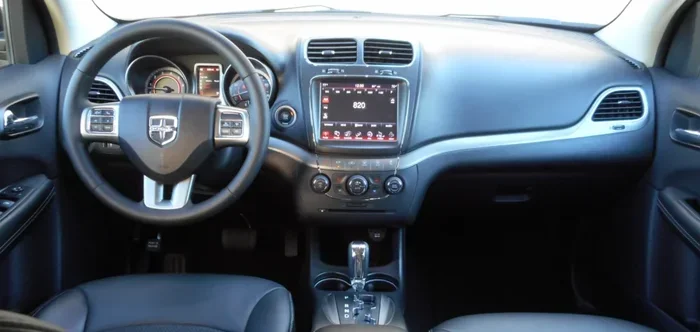
The Uconnect infotainment system in the 2012 Dodge Journey is a compact computer. Like any computer, it can experience software hiccups from time to time. Understanding why the screen acts up helps you prevent future problems and choose the right fix.
Common Causes of Screen Freezes and Glitches
Several things can cause your Dodge Journey display to malfunction. Here are the most common reasons:
- Software bugs: The Uconnect system runs on older software that can develop glitches over time.
- Memory overload: Too many open apps or background processes can slow the system down.
- Loose wiring connections: Vibrations from driving can sometimes loosen internal cables behind the screen.
- Outdated map data: Old navigation files can cause the system to lag or crash.
- Power surges: Jump-starting the vehicle or a weak battery can send voltage spikes that confuse the system.
- Moisture or heat damage: Extreme temperatures or water exposure can affect the screen’s internal components.
Most of the time, these issues do not mean your screen is broken. A simple reset of the Uconnect system clears temporary errors and restores normal function. Think of it like restarting your phone when it starts acting weird.
How to Perform a Soft Reset on Your 2012 Dodge Journey
A soft reset is the fastest and easiest way to fix a frozen or glitchy screen. It does not erase any of your settings, saved destinations, or radio presets. This should always be your first step.
Step-by-Step Soft Reset Instructions
Follow these steps carefully to perform a soft reset on your 2012 Dodge Journey touchscreen:
- Press and hold the volume knob on the Uconnect system for about 10 seconds.
- Watch the screen. You should see the Uconnect logo appear.
- Release the knob once the logo shows up.
- Wait for the system to fully restart. This usually takes 30 to 60 seconds.
- Test the screen by tapping it or adjusting a setting.
If the soft reset works, you are all set. The screen should respond normally, and any minor glitches should be gone. If the problem persists, move on to the hard reset method below.
Quick Tip: A soft reset also works well after you install a software update or connect a new USB device. It helps the system recognize changes and run smoothly.
How to Do a Hard Reset on the 2012 Dodge Journey Screen
A hard reset is a more thorough fix. It completely powers down the Uconnect system and clears deeper software errors. This method is similar to unplugging a computer and plugging it back in.
Method 1: Ignition Cycle Reset
This is the most common hard reset for the 2012 Dodge Journey and requires no special tools:
- Turn the ignition off. Move the key to the OFF position or press the start button without pressing the brake.
- Remove the key from the ignition or step on the brake and press the start button again to ensure full power-off.
- Open the driver’s door and wait at least 5 minutes. This lets the system fully discharge any residual power.
- Close the door and turn the ignition back on to the ACC or ON position (do not start the engine yet).
- Wait for the Uconnect system to boot up. The screen should light up and show the main menu.
- Test the screen by navigating through the menus and tapping different options.
Method 2: Battery Disconnect Reset
If the ignition cycle reset does not work, you can try disconnecting the battery. This method resets all electrical systems in the vehicle:
- Turn off the engine and remove the key from the ignition.
- Open the hood and locate the negative battery terminal (it has a minus sign).
- Use a wrench to loosen the nut on the negative cable.
- Remove the cable from the terminal and let it sit disconnected for 10 to 15 minutes.
- Reconnect the cable and tighten the nut securely.
- Start the engine and let the Uconnect system boot up completely.
Important: Disconnecting the battery may reset your radio presets, clock, and other personalized settings. You will need to reprogram those after reconnecting.
What to Do After a Hard Reset
Once the system restarts, check a few things to make sure everything is working correctly:
- Test the touchscreen: Tap different areas of the screen to confirm full responsiveness.
- Check the radio: Tune to a few stations to make sure audio works.
- Test Bluetooth: Connect your phone to verify the wireless connection.
- Navigate to GPS: Enter a destination to confirm the map loads properly.
- Adjust climate controls: Use the screen to change temperature and fan speed.
If all of these functions work, your hard reset was successful. If the screen still has issues, there may be a deeper problem that needs further attention.
Common Screen Problems and What They Mean
Not all screen issues are the same. Different symptoms point to different causes. Here is a quick guide to help you figure out what is going on with your Dodge Journey display.
Screen Is Completely Black
A black screen usually means the system has lost power or has crashed completely. Try the ignition cycle reset first. If the screen stays black, check the fuse box under the hood for a blown fuse related to the Uconnect system. A blown fuse is an easy and cheap fix.
Screen Is Frozen or Unresponsive
A frozen screen often happens when the system is overloaded or a software process has stalled. A soft reset usually fixes this. If the freeze happens frequently, it could be a sign of a deeper software issue or a failing memory module.
Screen Flickers or Has Lines
Flickering or vertical lines on the display can indicate a wiring problem or a damaged screen panel. This is less common but more serious. Try a hard reset first. If the issue persists, you likely need a professional diagnosis.
Touchscreen Is Slow or Laggy
Slow response times are often caused by outdated software or too much stored data. Clearing the system cache through a reset can help. Also, make sure your Uconnect software is up to date by visiting a Dodge dealer or checking for updates online.
Screen Shows Error Messages
Error messages like “System Error” or “Please Wait” typically indicate a software conflict. A full hard reset usually clears these messages. If the error keeps coming back, there may be a corrupt file that needs professional clearing.
Quick Comparison of Reset Methods
- Soft Reset: Fast, no data loss, fixes minor glitches, takes under a minute.
- Hard Reset (Ignition Cycle): Moderate speed, no data loss, fixes deeper freezes, takes about 10 minutes.
- Hard Reset (Battery Disconnect): Slower, may reset some settings, fixes serious software issues, takes 15-20 minutes.
Tips to Keep Your Dodge Journey Screen Running Smoothly
Prevention is always better than fixing a problem after it happens. Here are simple habits that help keep your 2012 Dodge Journey Uconnect system in great shape:
Keep Your Software Updated
Dodge occasionally releases Uconnect software updates that fix known bugs and improve performance. Visit your local Dodge dealer or check the official Dodge website for available updates. Installing these updates can prevent many screen issues before they start.
Avoid Overloading the System
The Uconnect system has limited memory. Avoid storing too many songs, photos, or videos on connected USB drives. Also, close apps and menus when you are done using them instead of leaving them running in the background.
Keep the Screen Clean
Dust and grime can build up on the touchscreen and affect responsiveness. Use a soft, microfiber cloth to gently clean the screen at least once a week. Avoid using harsh chemicals or abrasive cleaners that could damage the display.
Protect Against Power Issues
If you live in an area with frequent power surges or use a jump starter, make sure you follow proper procedures. Always turn off the Uconnect system before jump-starting the vehicle. A surge protector can also help safeguard the electrical system.
Restart the System Regularly
Just like your phone or laptop, the Uconnect system benefits from occasional restarts. Once a month, perform a soft reset to clear out temporary files and keep the system running efficiently.
Expert Insight: Many Dodge Journey owners report that simply restarting the system once a month dramatically reduces screen problems. It is a quick habit that pays off in the long run.
When to Seek Professional Help for Your Dodge Journey Screen
Most screen issues can be fixed with a simple reset. However, there are times when professional help is the right call. Do not hesitate to visit a Dodge dealer or trusted mechanic if you experience any of the following:
- The screen remains black after multiple reset attempts.
- Physical damage is visible, such as cracks, bleeding colors, or dead spots on the display.
- Error messages keep returning even after a full hard reset.
- The screen works intermittently, sometimes working fine and other times freezing.
- Wiring or connection issues are suspected, such as loose cables behind the dashboard.
- Other electrical systems in the vehicle are also malfunctioning, which could indicate a broader electrical problem.
A dealer can run diagnostic tests on the Uconnect system and identify hardware failures that a reset cannot fix. They may need to replace the screen unit, update the firmware, or repair internal wiring. While these repairs can be costly, they are sometimes covered under warranty or extended service plans.
Before visiting a dealer, make sure to note when the problem started and what steps you have already taken. This information helps the technician diagnose the issue faster and saves you time and money.
Frequently Asked Questions
How do I reset the screen on my 2012 Dodge Journey?
To reset the screen, you can perform a soft reset by pressing and holding the volume knob for 10 seconds until the Uconnect logo appears. For a deeper fix, try a hard reset by turning the ignition off, waiting 5 minutes, and turning it back on. Both methods are simple and do not require any special tools.
Will resetting the screen erase my saved data?
A soft reset will not erase any of your saved data, radio presets, or navigation history. A hard reset through the ignition cycle also preserves your data. However, a battery disconnect reset may reset your radio presets, clock, and some personalized settings. You can easily reprogram those after reconnecting the battery.
Why does my 2012 Dodge Journey screen keep freezing?
Screen freezes are often caused by software bugs, memory overload, or outdated Uconnect software. Performing a reset clears temporary errors and usually fixes the freeze. If freezing happens frequently, it could indicate a deeper issue that needs professional diagnosis.
How long does it take to reset the Uconnect system?
A soft reset takes less than a minute. A hard reset using the ignition cycle takes about 10 minutes, including the waiting time. A battery disconnect reset takes 15 to 20 minutes. The actual restart process usually takes 30 to 60 seconds once power is restored.
What should I do if the reset does not fix the screen?
If a reset does not resolve the issue, try checking the fuse box for a blown fuse. You can also visit a Dodge dealer for a professional diagnostic test. There may be a hardware failure, loose wiring, or a corrupted system file that requires expert attention.
Can I update the Uconnect software myself?
Some Uconnect updates can be installed using a USB drive downloaded from the official Dodge website. However, many updates are best handled by a Dodge dealer who can ensure proper installation. Check with your dealer for the latest update options and instructions.
Final Thoughts
Learning how to reset the screen on a 2012 Dodge Journey is one of the most useful skills any Journey owner can have. A simple reset can bring your Uconnect infotainment system back to life in just a few minutes, saving you a trip to the dealer and unnecessary repair costs.
Start with a soft reset for minor glitches. Move to a hard reset if the problem persists. And remember, prevention goes a long way — keep your software updated, clean the screen regularly, and restart the system once a month. These small habits keep your Dodge Journey display running smoothly for years to come.
If you ever run into a problem that a reset cannot fix, do not hesitate to seek professional help. A qualified technician can diagnose and repair hardware issues that are beyond what a simple reset can handle. With the knowledge from this guide, you are now well-equipped to handle most screen problems on your 2012 Dodge Journey with confidence.